
 Inspiretec Wiki
How to create a user on the temperature scanner
Step 1#
You will first need to RDP onto the server that hosts the control software for the temperature sensor. You can ether use it's;
FQDN name: INS-TEMPERATURE.internal.inspiretec.com ( Preferred )
IP address: 10.50.11.43
Step 2#
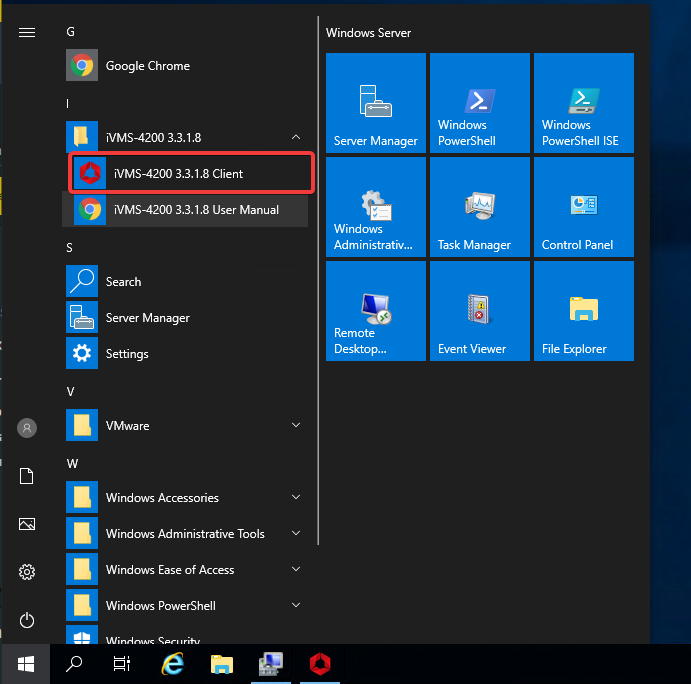
To start with, Open the IVMS-4200 application from the start bar.
Step 3#
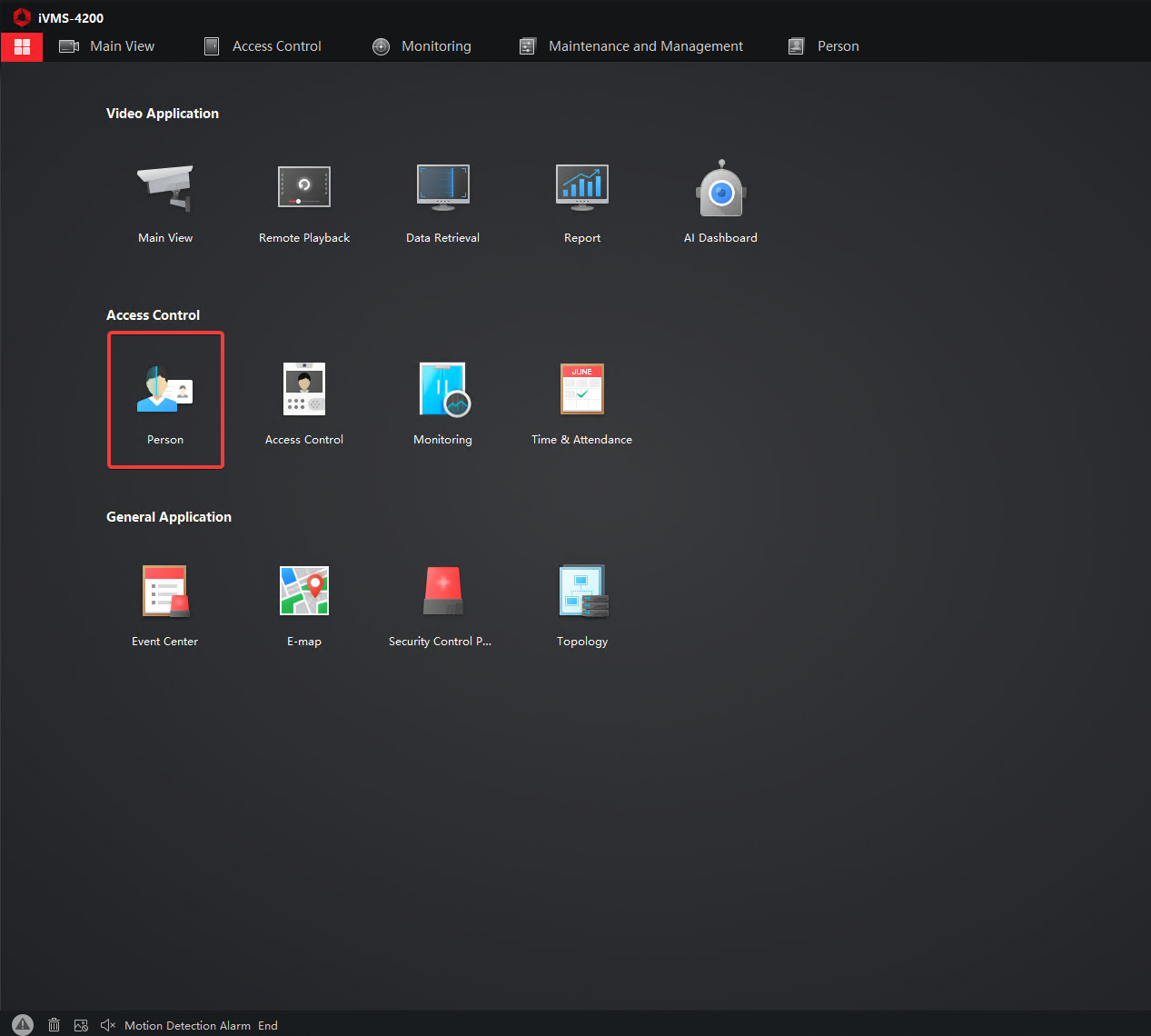
In iVMS-4200, select the "person" button under the access control heading.
Step 4#
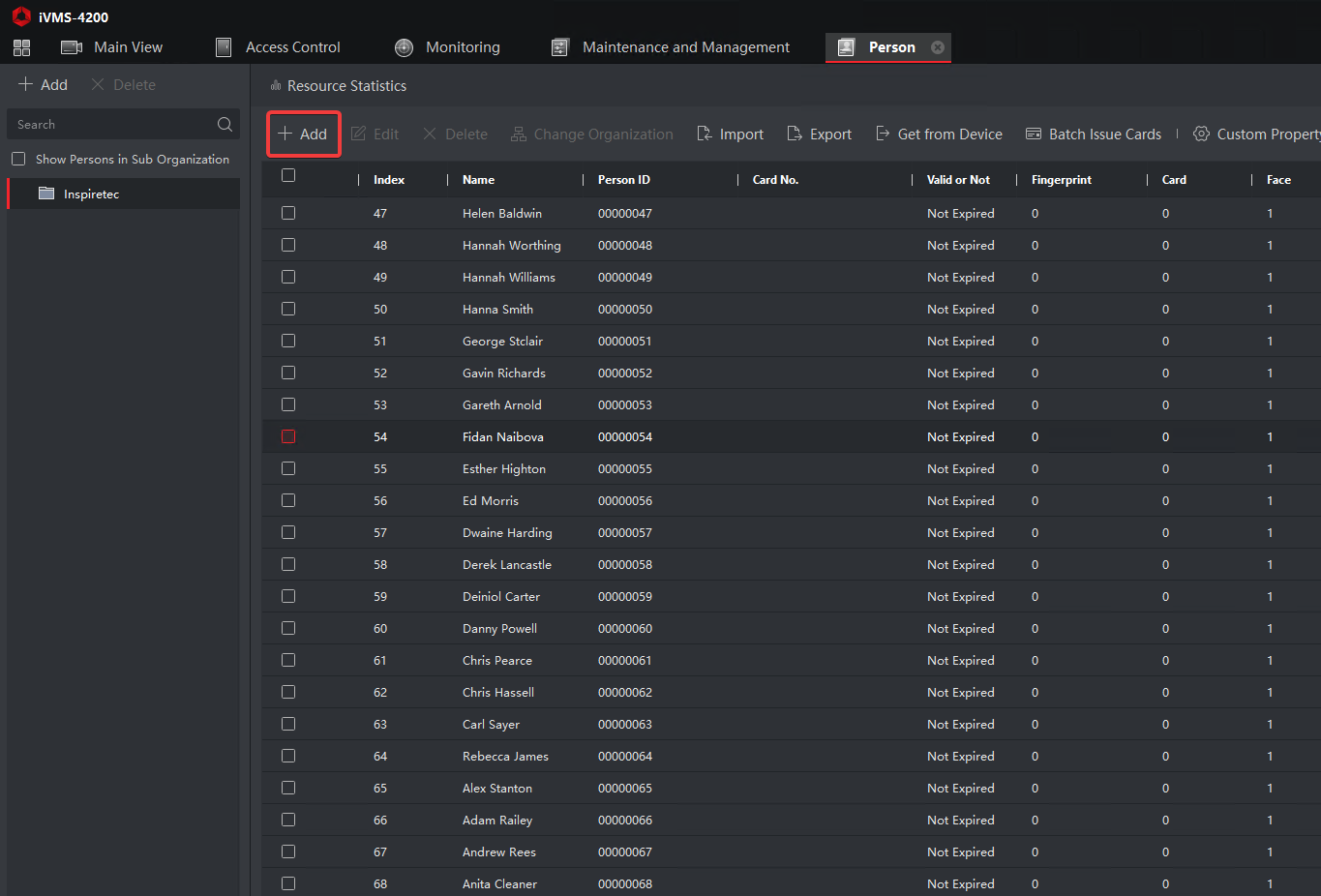
Click add to add a new user
Step 5#
Copy and paste the images from your computer to the server.
Step 6#
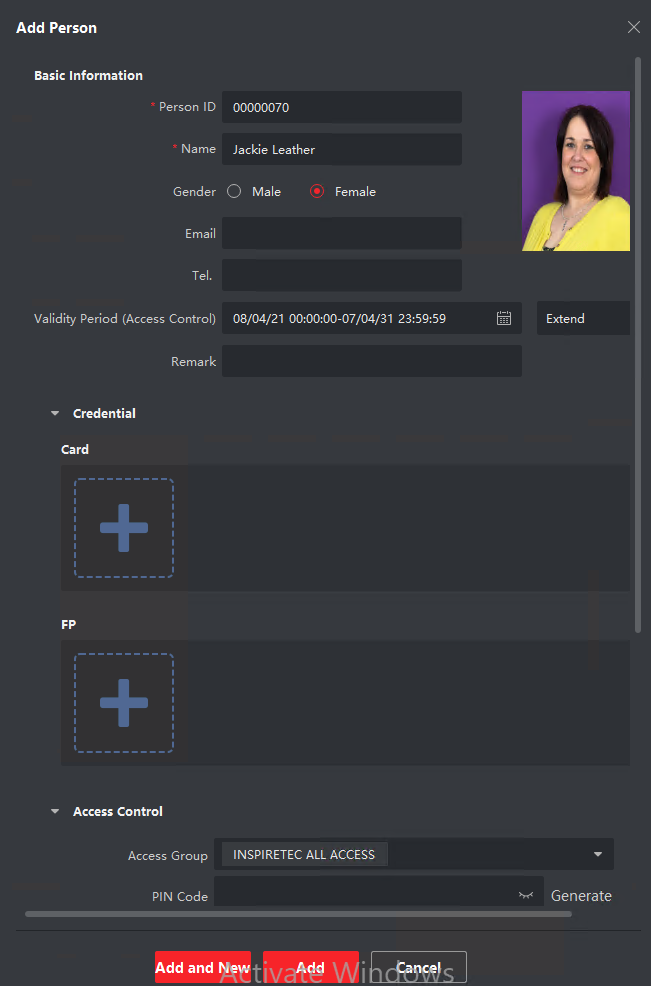
Fill out the following fields on the form
- Name
- Gender (This is used to better train the AI)
- Face (Click Verify by device as well)
On the same page, under the the access control heading, expand that and click on "Access Groups" and tick all.
Note: when you click upload on the profile picture and get an error saying the image is too large, you'll need to compress the photo. I recommend using https://tinypng.com
Step 7#
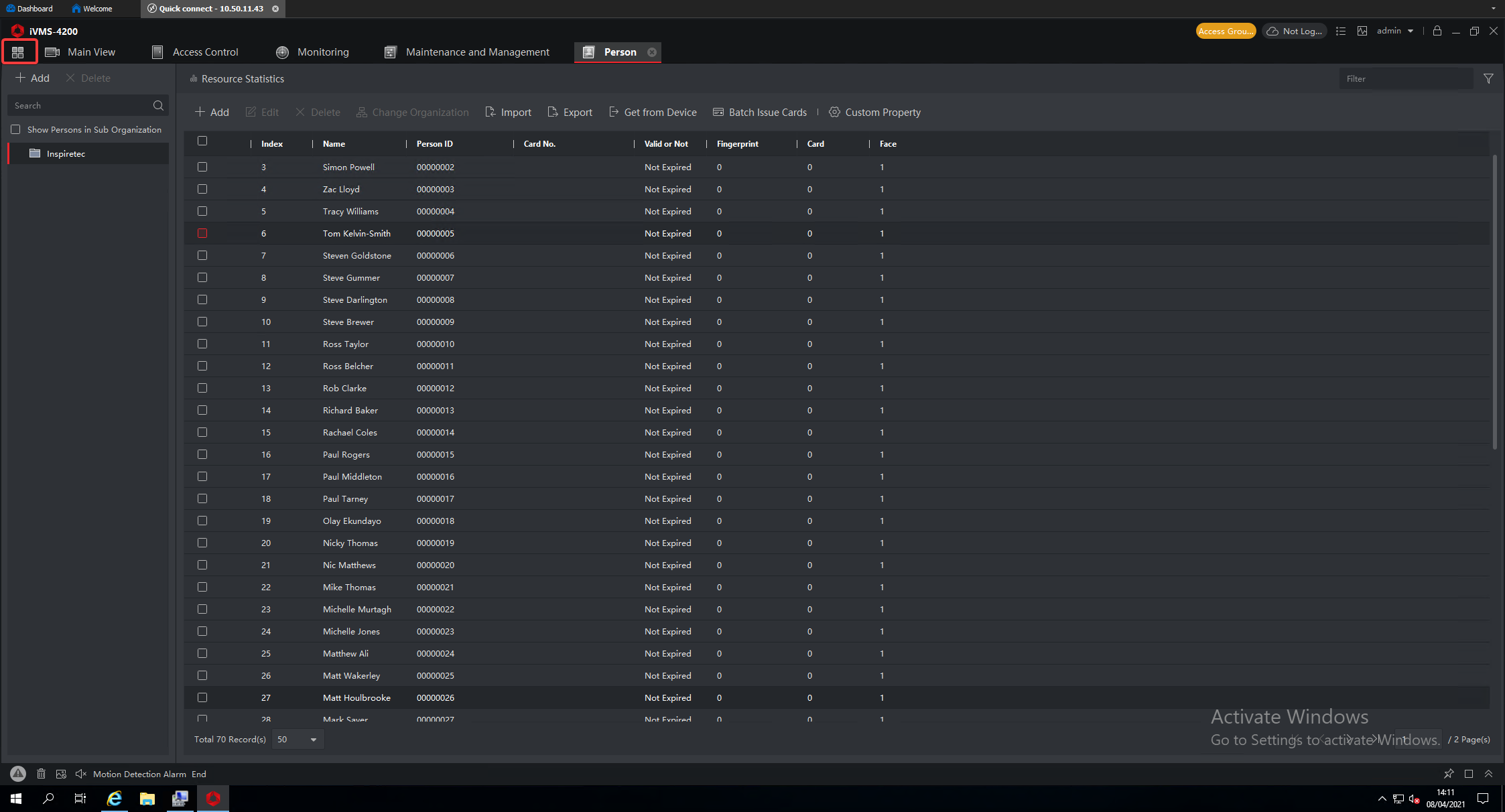
7. Now that you've added a new face to the system, you'll need to sync the system with the door reader. To-do this, click on the 4 squares in the top corner to go back to the home page.
Step 8#
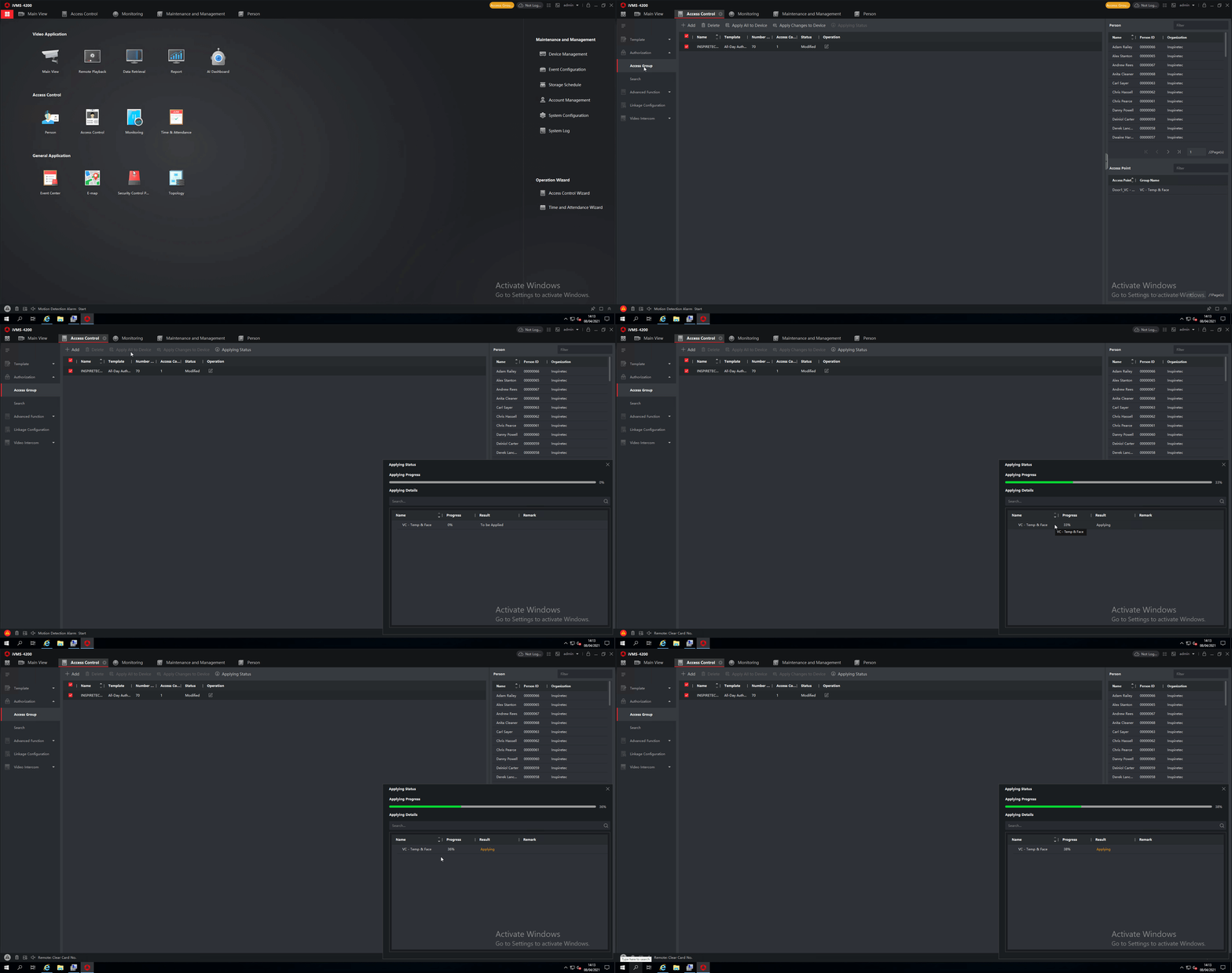
Now click on access control, access groups and click "Apply all to device", this send the profile picture to be stored locally on the device, as well as update any permissions
Step 9#
After following these steps you will have successfully added someone to the temperature door reader😊.
Article written by Josh Powell on the 08/04/2021